
Posts tagged ‘QR Code reader’

December 9th, 2010

How to Add a QR Code Reader to Your Phone

QR Codes are cropping up everywhere. They’re on print ads, billboards, business cards and just about every other place you look.

But if you’re like a lot of people, you understand how QR codes work, but you’ve never actually taken the time to download a QR code reader to your phone, let alone scan one and get the full experience.

Here’s your chance.

Scan this QR code from your smart phone. It'll take you to the social media glossary page on the 60 Second Marketer mobile website. Be the 1st person to correctly write the 3rd definition in the social media glossary below and you'll win a free copy of my book, How to Make Money with Social Media.

What follows is a step-by-step description on how to download a QR code reader to your smart phone. (You’ll see that it’s amazingly simple.) After you’ve downloaded the QR code reader, scan the QR code on this page, which will take you to a social media glossary on the 60 Second Marketer mobile website.

But wait! There’s more!

The first person to scan the QR code and to correctly enter the third definition on the social media glossary in the comments section below will win a free copy of my book, How to Make Money with Social Media. To win the book, you have to include the entire definition without error.

(The book retails for $24.99, so get your fingers ready to type!)

Once a winner has correctly entered the definition in the comments section below, I’ll contact them via email to obtain a mailing address. (In other words, don’t put your mailing address in the comments section below. I’ll contact you for your mailing address.)

Good luck!

Here’s how to add a QR Code Reader to your smart phone:

  1. Grab your smart phone and open up your web browser
  2. Go to BeeTagg.com
  3. Navigate through the BeeTagg.com site to find the QR code reader for your specific phone
  4. Download it to your phone
  5. Once it’s downloaded, exit your browser and launch the BeeTagg application that’s now on your phone
  6. Press “Scan”
  7. Hold the phone up to the QR code on this page
  8. Your phone will scan the QR code, then will automatically take you to the social media glossary on the 60 Second Marketer mobile website

It’s as simple as that. It shouldn’t take more than 5 minutes for the entire process.

Remember, the first person to write the third definition in the comments section below wins a free copy of How to Make Money with Social Media!

(For more on QR Codes, read How to Use QR Codes to Promote Your Business on the 60 Second Marketer blog.)

Posted by Jamie Turner, Chief Content Officer at the 60 Second Marketer, the online magazine for BKV Digital and Direct Response.

September 1st, 2010

How to Use Mobile Media QR Codes to Promote Your Business

Dan Smigrod is the CEO and Chief Creative Officer at Great!, a company that generates innovative, breakthrough marketing ideas for a variety of well-known brands.

Not long ago, Dan wrote a blog post called 101 Uses for Quick Response Codes. You’re familiar with Quick Response codes. They’re the little square boxes (like the one on this page) that can be snapped by a smart phone to drive a user to a website, an MP3 download, a contact card or any other number of uses.

Interested in the QR code experience? Snap this QR code from your smart phone and find out where it takes you.

Dan’s post is really terrific. Seriously, I’d encourage you to visit the blog, print it out, then ponder all the different ways QR codes can be used to engage prospects and customers.

Dan has agreed to let me share my favorite ideas from his post with you. Here are some of my favorite ideas from Dan’s list:

  1. Business cards — The recipient scans the code to import your contact information.
  2. Website — Add a QR code to the contact page on your website so users can instantly download your contact information.
  3. Product packaging — If you sell a product that requires installation, include a QR code on the box to drive users to online instructional videos.
  4. Outdoor board — Great for a teaser campaign for a new movie or TV show. Scan the code to watch the trailer, sneak preview or teaser episode from your mobile phone.
  5. Name tags — Create and add your scan code to your name badge to make it easy for conference attendees to get your contact information.
  6. Home for sale signs — Add a scan code that launches a video or photo tour of the house.
  7. Historical site markers — Ditto. A scan code can enhance the experience of the people visiting the site.
  8. Restaurant menu — Scan the code for recipes to your favorite dishes.
  9. Press release — Include scan codes in press releases to provide recipients with additional information.
  10. Grocery shopping cart — Users can scan the code in to get special discounts at the grocery store. The scan code doesn’t change, but the offer rolls over with a new one every week.
  11. Link to iTunes App store — The Wall Street Journal included a scan code in one of their ads that instantly drove the visitor to the iTunes App store, where they could download the iPhone App for that product.
  12. In the Mens’ Urinals — Dan’s company Great! proposed and implemented the first interactive urinal communicator for CMT Outlaws. “Don’t miss Outlaws on CMT. You seem to miss everything else!”
  13. YouTube video — Scan the code at the end of the video to take you to a related video, thereby keeping the user engaged.

Those are just some of the ideas in Dan’s list, so be sure to read the full post.

In the meantime, don’t leave the 60 Second Marketer blog without using your smart phone to snap our QR code on this blog post.

If you don’t already have a QR code reader installed on your smart phone, here are the steps to make it all happen:

  1. From your mobile phone, type one of these URLs into your web browser: http://get.beetagg.com/ or http://www.getscanlife.com/ or http://tinyurl.com/292s5go.
  2. Download the QR code reader to your smart phone.
  3. Then, snap a photo of the QR code on this page and enjoy the ride!

That’s all for now, folks. We’ll be doing many more mobile media stories in the near future.

Onward.

Posted by Jamie Turner, Chief Content Officer for the 60 Second Marketer, the online magazine for BKV Digital and Direct Response. Download a free chapter from Jamie’s new book by clicking “How to Make Money with Social Media.”


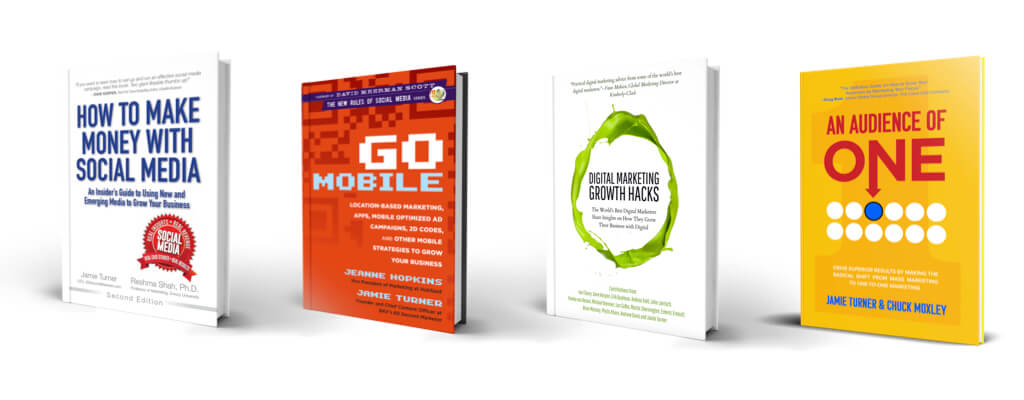
The 60 Second Marketer is an online community that provided tools, tips and tutorials for marketers around the globe. It was founded by Jamie Turner, co-author of "How to Make Money with Social Media" and "Go Mobile." For more information about the 60 Second Marketer and Jamie Turner, visit the "contact" link at the top of this page.

© 60 Second Marketer