


You’ve Seen Jamie Here

How to Calculate the ROI of a Marketing Campaign
Would you like to calculate the return on investment of your next marketing campaign? It's not as difficult as it might seem. All you have to know are a few basic calculations. In this blog post, we'll discuss the language of finance -- these are the terms your CFO...
What I Learned About Marketing from My Experience with Burger King’s Impossible Burger
Burger King has done something amazing in recent months -- the worked their way back into the public consciousness. How? By introducing the Impossible Burger which -- spoiler alert -- is AMAZING. But what happens when you travel 5 miles to try your first Impossible...
What is Influencer Marketing?
Influencer Marketing is a marketing tactic that allows brands use celebrities and social media influencers to promote the organization's products and services. Famous personalities such as Kylie Jenner, Selena Gomez, Cristiano Ronaldo, and Kim Kardashian West charge...
Jamie Turner is an internationally recognized author, professor, and speaker who teaches marketing and leadership around the globe.
“Jamie Turner has an ability to inspire people into action in ways very few other speakers do. He has become my go-to recommendation to clients across the country.”
“Whether he’s talking about leadership, digital media, or business, Jamie transforms people in the audience within a matter of minutes. If you’re looking for someone to inspire people to action, he’s the real deal.”
Our Most Popular Posts


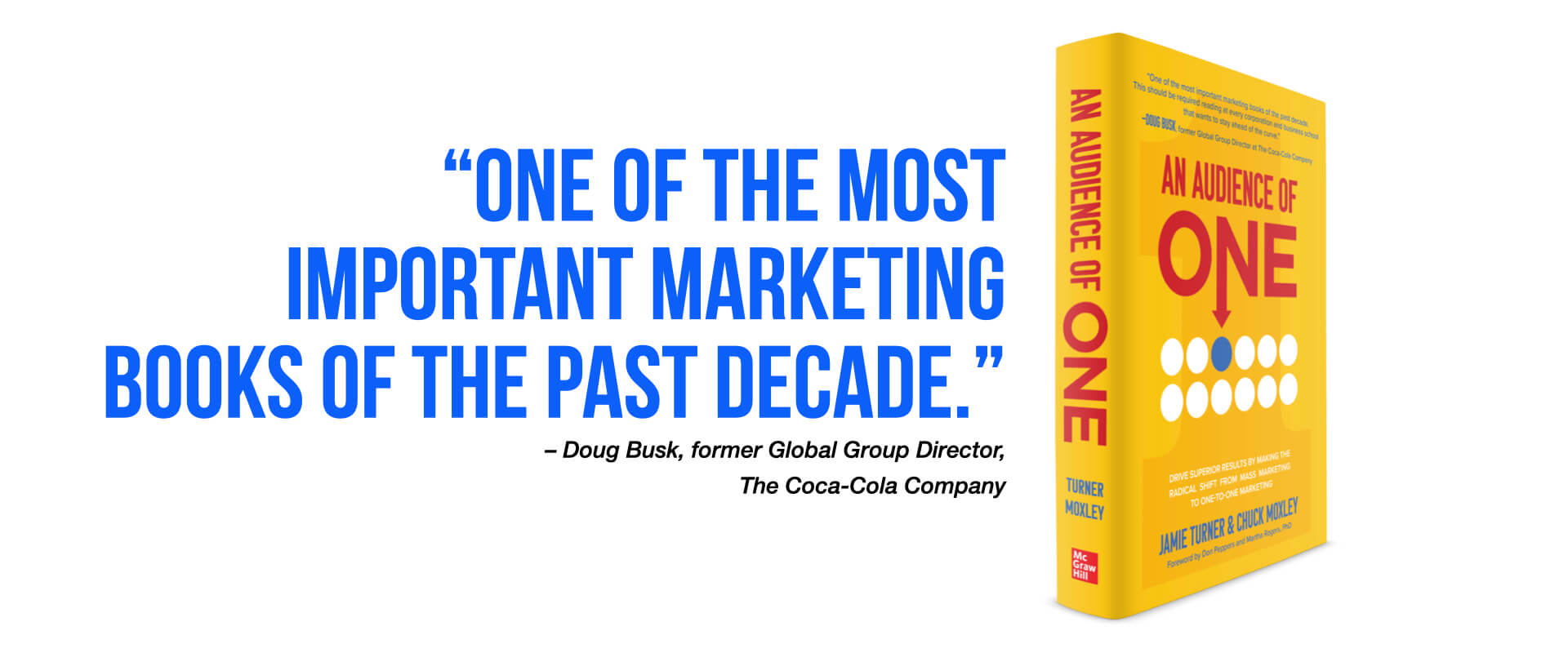
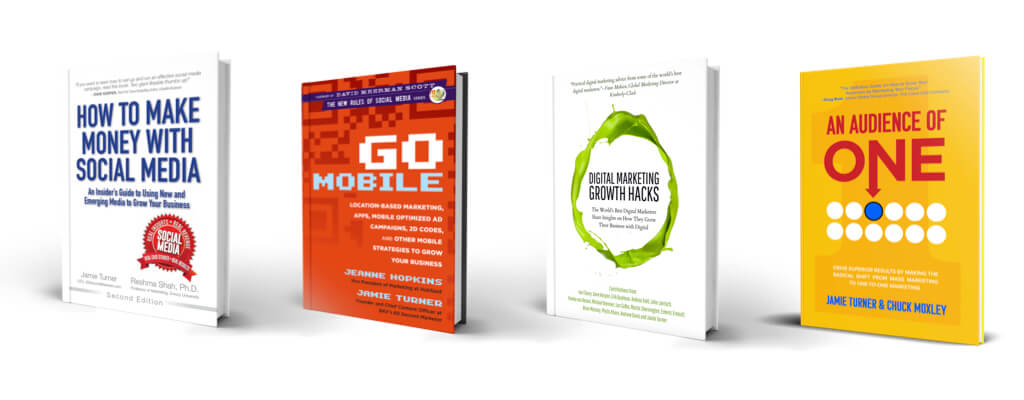
Jamie is the author of several books and can be seen regularly on network TV news and other media outlets.
Would you like to read more content from author, professor, and speaker Jamie Turner? If so, read these posts on the Unspoken Rules of Leadership blog: An In-Depth Guide on How to Improve Your Communication Skills; How to Develop a Growth Mindset; How to Delegate; How to Lead: Using Your Mindset to Become a Better Leader; and Ten Action Steps for Aspiring Leaders.